Tuesday, March 3, 2015

Emerging Technologies and the NMC Horizon Report

Last week I facilitated  a workshop called  "Emerging Technologies: What's on the Horizon?" It's an interesting topic which always evolves into some great conversations about emerging technologies and implications for current and future students, learning and instruction. I also really enjoy it because it has a lot of demonstration and "hands on" time.

We designed this workshop based on the New Media Consortium and the Educause Learning Initiative's yearly "2014 Horizon Report" which examines "the key trends, significant challenges, and important technological developments that are very likely to impact changes in higher education across the world over the next five years." If you are unfamiliar with this yearly publication, I highly recommend that take a few minutes to peruse it. (The 2015 Horizon Report report was just released a couple of weeks ago). Whether your an instructor, an administrator, or a member of your school's IT staff, the information in the Horizon report will be pertinent to teaching, learning, and planning for what's ahead in the name of what's best for our students in relation to emerging educational technologies.

Below is a summary of the three key areas that the report addresses:
  1. Key Trends Accelerating Technology Adoption in Higher Education
  2. Significant Challenges Impeding Technology Adoption in Higher Education
  3. Important Developments in Educational Technology for Higher Education
In the workshop, I tend to focus more on #3 above, which are the actual tools/technologies that the report sees being widely adopted in the next 1-5 years.While all three areas are important, I like to get people engaged with the tools/technologies whenever possible. Below is a list of links to the presentations I used and some of the various tools that were discussed or demonstrated.
Additional Links to some of the technologies that were demonstrated or used during hands-on time:
Again, I encourage you to read the free 2015 Horizon Report. It is a publication that is both interesting and valuable as we in higher education try to stay aware of "emerging technologies likely to have an impact on learning, teaching, and creative inquiry in education."
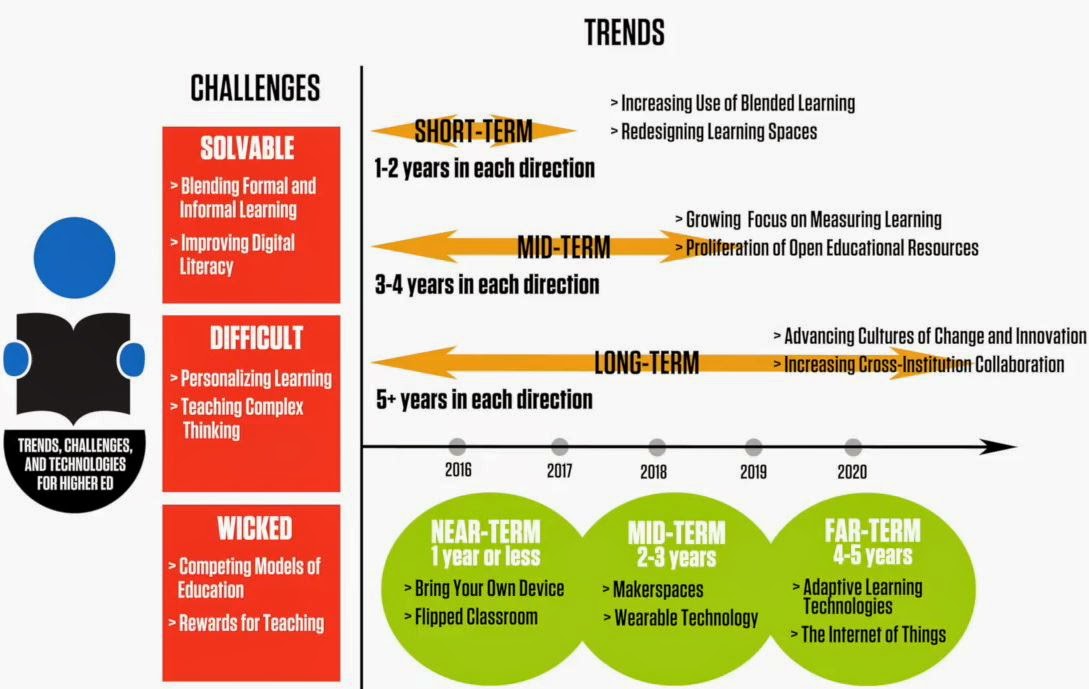
Summary of the Key Area of the 2015 NMC Horizon Report
Summary of the Key Areas of the 2015 NMC Horizon Report
Keep Calm and Barry On!
Barry

Monday, February 23, 2015

Fair Use Week 2015

We are fortunate at LLCC to have a very knowledgeable and helpful library staff! This week I am passing on some information from Amanda Wiesenhofer who (among other things) is in charge of Electronic resources at our library.

Amanda also keeps current on the issues of fair use and copyright in this digital age, and has always been there to help faculty and staff with questions on this important topic. Last week she alerted me to the fact that it is "Fair Use Week" and passed on some great resources.

Please see the resources below about "Fair Use and Copyright" and let Amanda know if you have any questions regarding using materials with your students.
The tweetchat will address concerns like the following:
  1. Can I make a digital copy of this video?
  2. When is a public performance public?
  3. When can I break digital rights technology on DVDs?
  4. Is the auditorium a classroom?
  5. How can libraries preserve born-digital works acquired via a license agreement?
  6. And my favorite: What about YouTube? What can we do with YouTube?
  7. Ask Brandon Butler your media question. Participate in the Twitter tweetchat by using #videofairuse on February 25, 2015, from 3:00 to 4:00 p.m. EST.

Thanks again Amanda!

Keep Calm and Barry On!

BL

Monday, February 9, 2015

Internet of Things / Internet of Everything

Today I'm trying to wrap my around the Internet of Things and implications for education. The Internet of Things IoT has a variety of definitions. A simple definition might be A physical object that...
  • has network connectivity
  • can send/receive data
  • can communicate with other smart devices
The Internet of Things (IoT) is also known as The Internet of Everything (IoE), which CISCO defines as 'the intelligent connection of people, process, data and things.has a variety of definitions.' I tend to think of the IoT as the smart objects themselves, whereas the IoE includes the bigger picture of what can result from the combination of these smart objects with connectivity-automation, data collection, decision-making, convenience, cool toys, more efficient homes and cities, etc. Just know that the terms are often used synonymously.

In the good old days, the internet was found only on personal computers. It's been fascinating to see things go to mobile devices and now moving to smart objects. I had to get a new garage door a few years ago-I recall reading the documentation and being amazed that there was an option to connect my console to my router. At first I was like, What? Why? but then it began to make sense. I could get a report of when the garage door was opened (what time time did my teenagers get home?), I could let the UPS driver into the garage to make a delivery by pressing a button on my phone app, then close the door after he leaves, etc. Other recent examples I recall are smart thermostats like NEST, and smart door locks which will recognize people and only let authorized people in, send reports of who came in and when, and can even take and send a picture of who is at your door through your phone.

I'm also amazed at the automation that is possible with connected objects and smartphones. An example is the If This Then That (IFTTT) website which lets users set up automation based on their phones, smart objects in their homes, and commonly used web site. For example...
  • If the weather forecast calls for rain, then send me a text reminding me to grab an umbrella
  • If I get near my workplace, automatically silence my phone
  • If I leave for work, then turn off my lights (or down my furnace)
  • If a player on my fantasy baseball team gets hurt, send me a text
You get the idea-some are downright silly and for fun, but some of these automatons can provide you with valuable instant information or result in a more efficient energy bill.

The data collection can also be incredibly useful. Think about the data that is collected from a fitbit and how it can help someone monitor their own health. I have also read recently about a smart bra that can help detect breast cancer and using smart objects to reduce traffic congestion.

As far as education, I can see some interesting implications. Could you easier collect data on students to better personalize their education? Could a student with low vision have the words on a computer screen automatically enlarged? Monitors in PE class? Checkout this CISCO article on IoE in Education.

There are several new smart object products that could be valuable in teaching critical and higher order thinking skills, support Science, Technology, Engineering and Math goals, and equip students with the skills necessary for their future workforce in an engaging way. Think of Lego Mindstorms, Littlebits CloudBit Module, and the product in the video below, and Mesh (video is a little silly, but hopefully you can see the potential).


As with any technology, there are concerns. Immediately I think of privacy, security, what happens when the wi-fi goes down, and someone (like an insurance company) using data in a punitive way. Things to consider.

Now if only there was a smart object that would make my lunch when my stomach growled...Sorry for the long post! Keep calm and Barry On! BL


Thursday, February 5, 2015

Blackboard Support Center

The Blackboard Support Center http://www.llcc.edu/bbsupport provides you with on-demand support to common questions on the use of Blackboard at Lincoln Land Community College. There are areas of support for both faculty and students. Below is a "Blackboard in Under a Minute" video showing where to access the support center and a quick overview. Hope this resource is helpful!


Wednesday, February 4, 2015

Top Five Ways to Use Screencasting in the Classroom (Article)

An interesting article from the Techsmith website. I've summarized the main points with examples below, and you can read the entire article here....http://blogs.techsmith.com/for-educators/screencasting-in-the-classroom/

1. Live Screencasting 
     http://www.screencast.com/t/ulvX17F72W
2. Online/Hybrid/Blended Learning
     http://www.screencast.com/t/2kSUcEZG
3. Student Created Content
     http://www.techsmith.com/education-video-how-to-feedback.html

Below is the video from #4 above:

Monday, February 2, 2015

Google Earth Pro Is Now Free

I read recently that Google Earth Pro is now free. Here are some of the most obvious differences that I can see between the free and pro versions (taken from this link):

  • Print images at 4800×3200; non-Pro is capped at 1000×1000.
  • Automatically import a few thousand addresses at once to be pinned on a map
  • Capture HD videos of what’s on screen.
  • Measure distances/areas using lines, paths, polygons, circles, and more. Non-pro can only handle lines/paths.
Your average user probably doesn't use most of these advanced features or many of the free ones for that matter. I could, however, see an immediate use for printing the hi-res images and capturing the HD videos of your screen to create interesting fly-over or street level tour videos that can be used in instruction or in the creation of other instructional media or presentations. Below are some links with more information:

Google Lat/Long blog, with information on accessing the free download:

Keep Calm and Barry On! BL

Friday, January 30, 2015

Student View in Blackboard

While you can toggle the edit mode button in blackboard to get "sort of" a student view, the only way to get a true student view of your course is to use the "Student View" feature that is found in your Control Panel under 'Course Tools.' Clicking this button will actually create a demo student account in your course that is a true student view. As such, you will see this demo account show up in your course list and you must actually log out of Blackboard and log in as yourself to access your instructor editing functions. See the video below for a quick overview of the Student View in Blackboard.